

Visual workspace
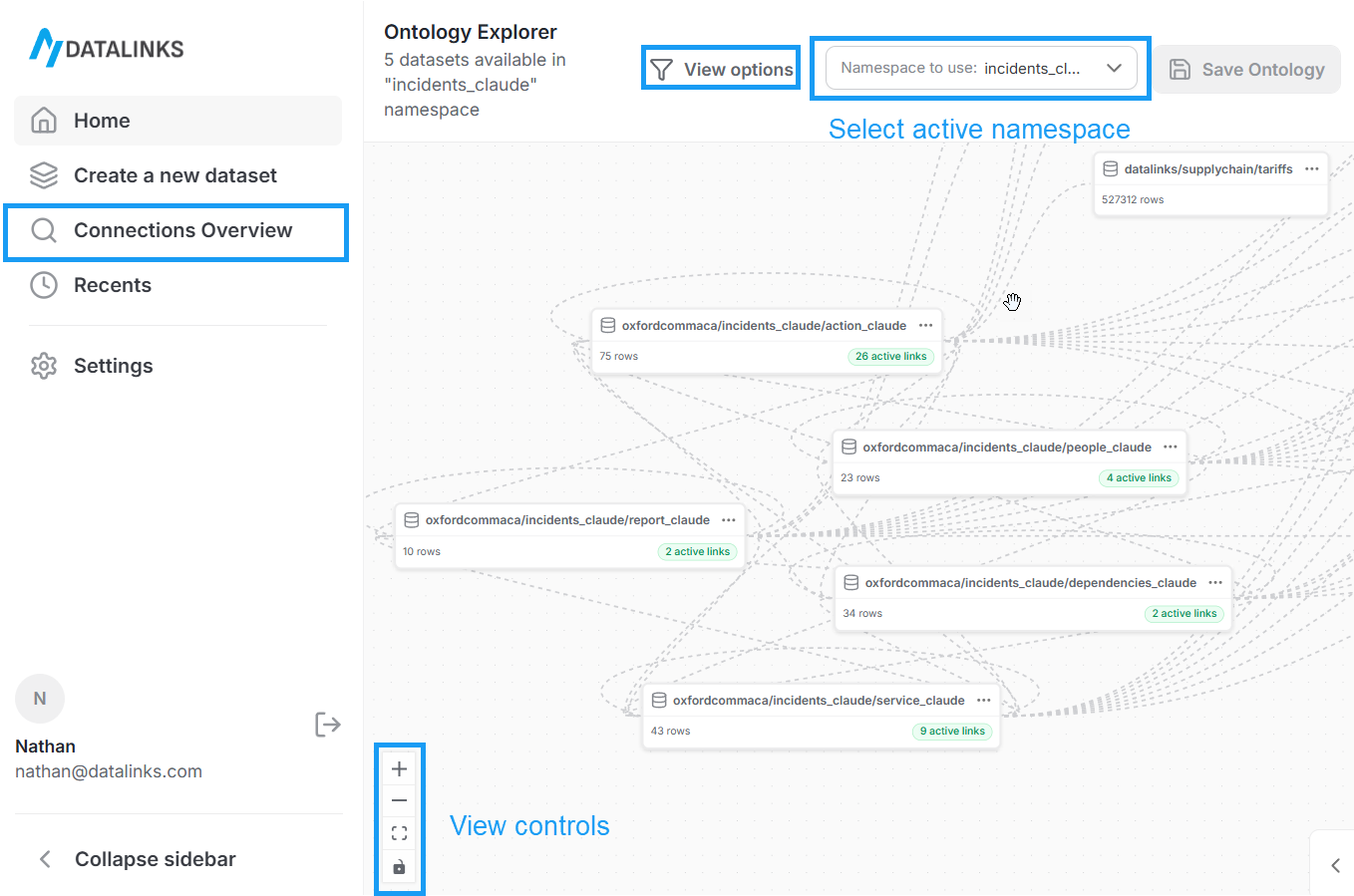
The center of the screen displays your datasets as nodes. Each node represents a dataset, and lines between nodes show existing active links. The layout adjusts automatically as you work, allowing you to zoom or pan to keep everything in view. When you select a dataset in the workspace, the right-side panel opens to show link details. This panel is where you review suggested connections and manage the links already in place.Namespace selector
At the top-right corner of the page, the namespace selector lets you switch between namespaces. When you switch namespaces, only the datasaets in that namespace and with active or suggested connections to that dataset appear.Saving your connections
After adding or removing links, select Save connections to store your changes. Saving updates the semantic structure for all datasets in the namespace.View controls
You can manage the dataset visualtion using the view controls in the bottom-left corner of your screen. Click the plus (+) or minus (-) buttons to zoom in or out, the frame button to fit all datasets in your namespace into view, and the lock button to freeze datasets in place (so you can’t accidently click a dataset and select it).Link details panel
When you click a dataset in the Connections Overview, it opens the Link details panel, where you can manage suggested and active links.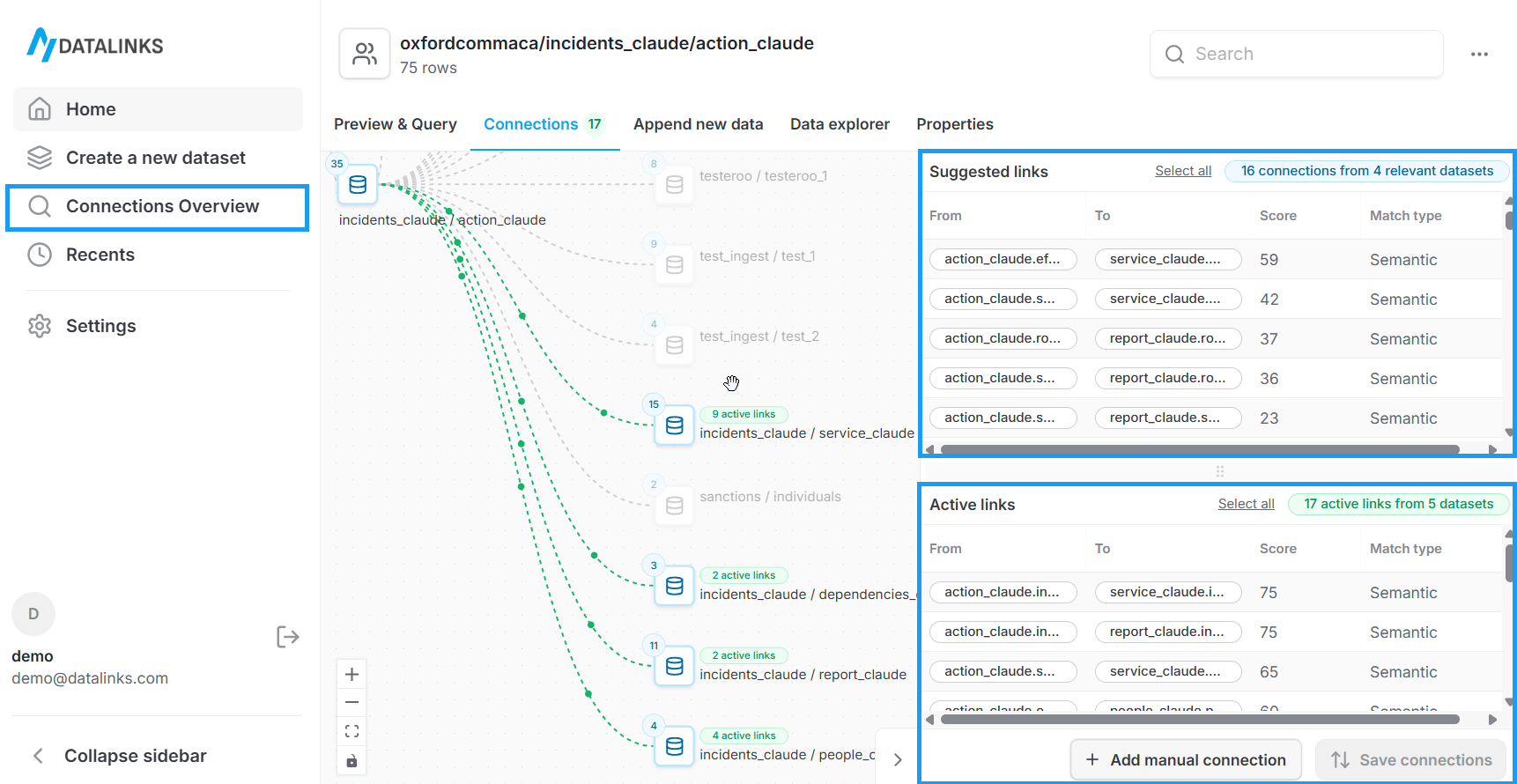
Suggested Links
When you click a dataset, the suggested links panel appears and lists potential relationships between fields across your datasets. These suggestions come from the platform’s semantic analysis. Each row shows:- The source field
- The target field
- A score that reflects link relevance
- The match type
Active links
The Active Links section shows the links that are currently part of the connections for the selected namespace. Each active link displays:- The source field
- The target field
- A relevance score
- The match type
You can clear all selected links using the Clear selection option at the top of the section.