

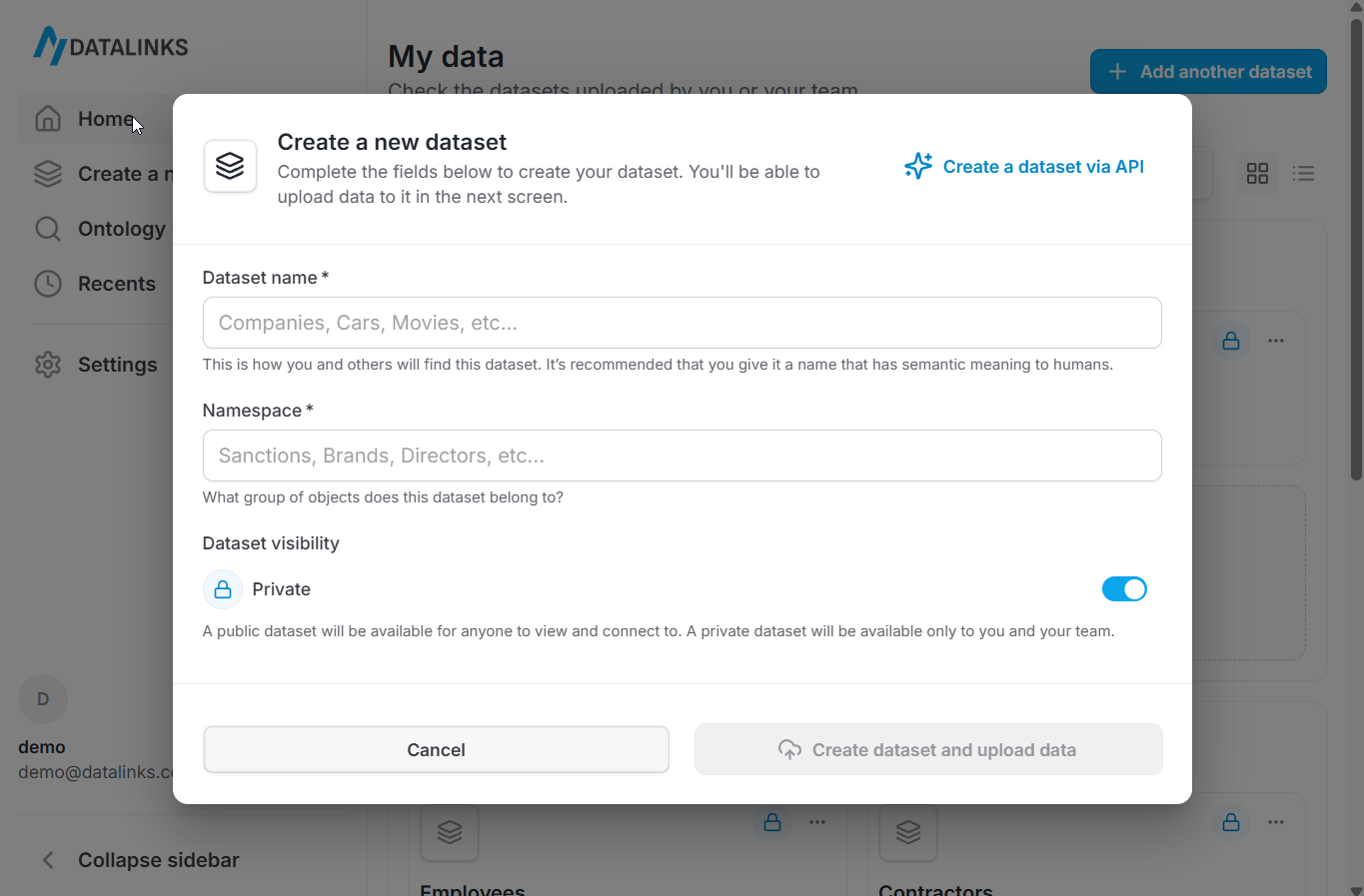
Dataset name
The first field asks you to provide a dataset name. This name appears throughout the platform, so it helps to choose something meaningful and clear.Use underscores instead of hyphens when naming datasets.
Namespace
Every dataset belongs to a namespace. A namespace is a group that brings related datasets together. You will either select an existing namespace or enter the name for a new one. Namespace names also follow the underscore format. If you plan to create several datasets that share a theme or domain, placing them in the same namespace helps keep everything organized and easier to browse later.Dataset visibility
This setting determines who can view the dataset once it is created.- Private
A private dataset is visible only to you and your team. - Public
A public dataset is available for anyone across the DataLinks platform to view and connect to. Public datasets can help others link their data or understand shared concepts.
Action buttons
At the bottom of the modal, you will find two buttons.- Cancel closes the window without creating anything.
- Create dataset and upload data completes the creation step and moves you to the upload workflow, where you can add files and begin ingestion.
Creating a Dataset via the API
The modal includes a link to Create a dataset via API, which opens a panel showing the request format for creating datasets programmatically. This option is helpful if you are building automated pipelines or managing datasets through scripts.For detailed instructions, see How to create a dataset.