> ## Documentation Index
> Fetch the complete documentation index at: https://docs.datalinks.com/llms.txt
> Use this file to discover all available pages before exploring further.
# How to Get a DataLinks API Token
> Connect third-party applications to DataLinks using a token.
Getting an API token is the first step toward connecting your systems and applications to DataLinks. Your token lets you authenticate securely, access your workspace, and begin sending data to be structured, linked, and enriched.
Follow the steps below to find your token and how to copy it safely so you can start integrating with the platform.
## How to create a new token
1. Log in to the DataLinks platform.
2. Click **Settings** in the left navigation menu.
3. Click the **Tokens & API** tab.
4. Click **+ Add a new** token.
5. Enter your desired token name and set an expiration date (for example, one month).
Your connected app will stop working when the token expires. Make sure you have enough time to renew it or plan to update the token details before the expiry date.
6. Click **+ Create token**.
7. Copy and save your token.
You can only view your token information during creation. Save a copy in a secure place so you can access it later. Otherwise, you will need to create a new token.
8. Click **I’ve copied the token** to close.
## How to Delete a Token
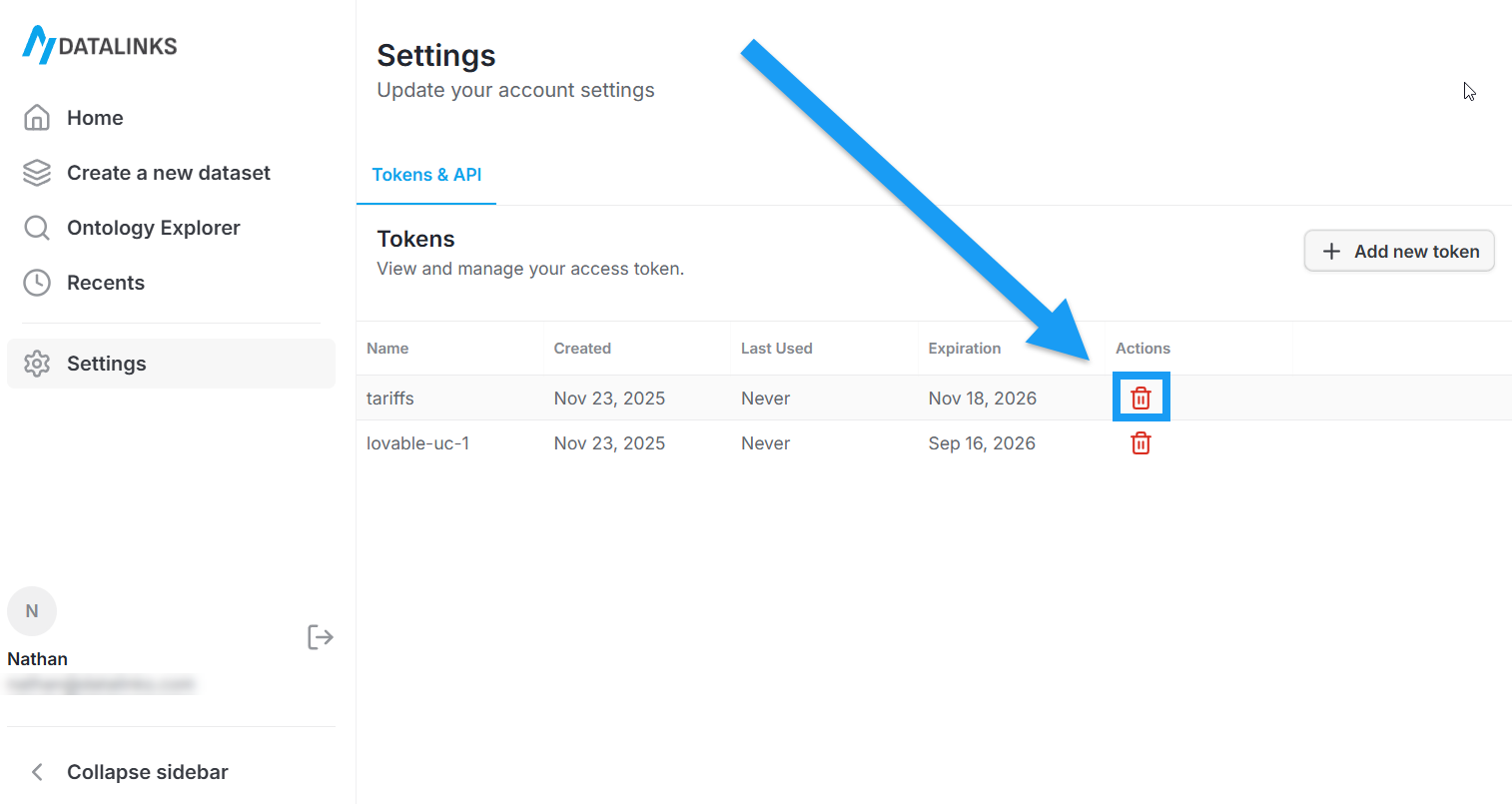
On the **Tokens & API** tab of the **Settings** page, you can click the red trash icon in a token's row to delete it, as shown in the screenshot below: